
How to connect Recapture to Claude, Gemini, ChatGPT or other AI
What is a connector to AI (MCP)?
A connector is a way to make Recapture talk to AI so you can prompt your AI tool in plain English to do things inside of your Recapture account. Recapture now works with AI apps like Claude, ChatGPT and Gemini. Once you connect one, you can ask it questions about your campaigns and broadcasts in simple phrases, and it pulls the real answers straight from your Recapture account.
Things like:
- "How did my abandoned cart emails do last month compared to the month before?"
- "Show me what my winback email looks like."
- "Rewrite the subject line on my welcome email so it sounds friendlier."
The AI app can read your campaigns, your results and your settings. If your role allows it, the app can also make changes when you ask. Every change it makes shows up in your campaign history with the app's name on it, so you always know what happened and when.
Behind the scenes this uses a standard called MCP (Model Context Protocol). You don't need to know anything about MCP to use it. You just need the address below to help set it up in about two minutes.
Who can use this?
Any paid Recapture account.
If you're on a team, each member connects their own AI app. The app can reach every store that member has access to, including stores they get added to later. On each store, the app can only do what that member's role allows. Roles are set on the Teams page (right side menu, then Teams). Read more about teams and roles here.
How do I connect an AI app?
You only do this once per AI app, and it takes about two minutes.
Step 1: Get the connection address
The address is the same for everyone:
https://app.recapture.io/mcp
You can also find it inside Recapture. Click Account Settings, scroll down to Integrations, and click Connect next to AI Apps (MCP):
Before:

You'll see a popup with the address and short instructions for each AI app:

Click Copy to grab the address.
Step 2: Add the address to your AI app
Find your app below and follow its steps.
Claude (claude.ai)
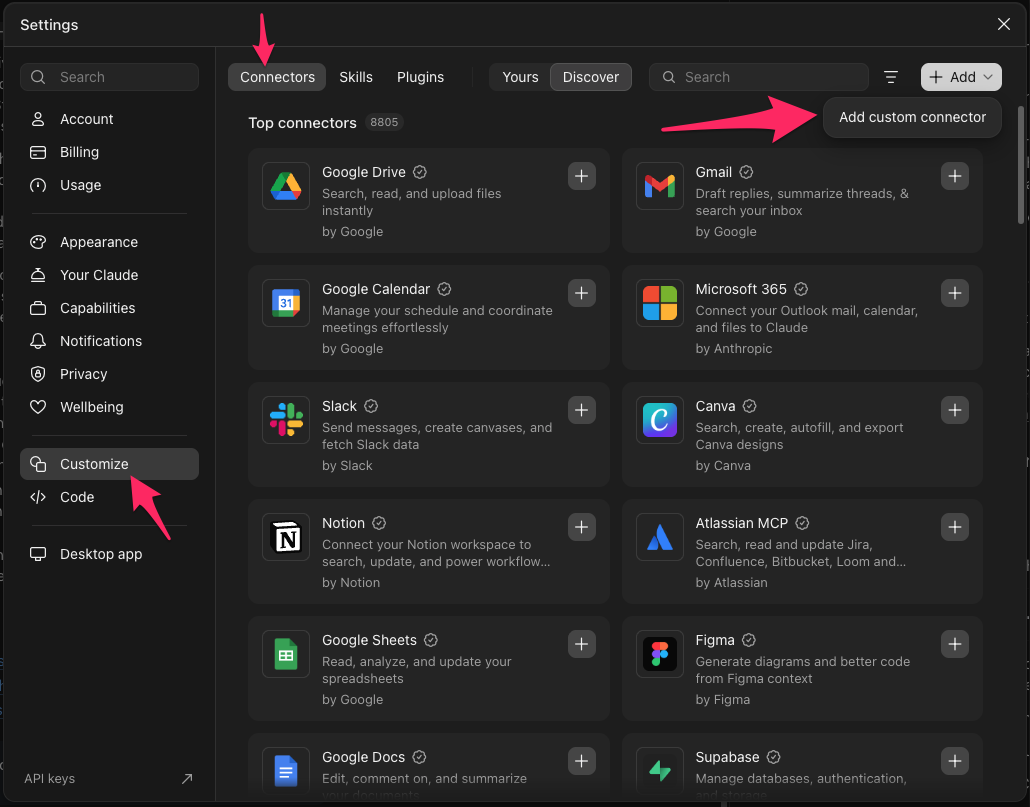
- Open Claude and go to Settings, then Connectors.
-
Click Add custom connector.
-
Enter the info for the URL and the name (we suggest "Recapture" or "Recapture Connector" to help you remember what it is) and click Continue
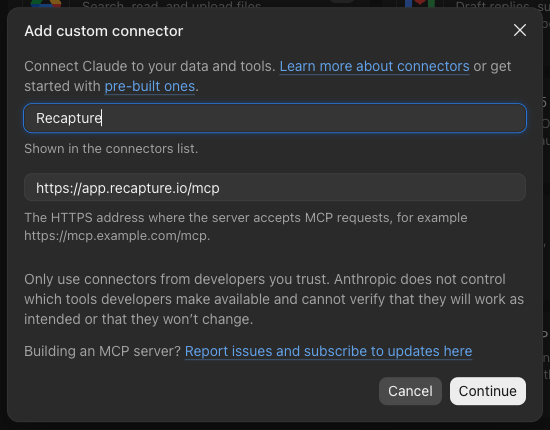
- Accept the default settings for the Add Custom Connector screen and then click Add
-
- Next, you'll be prompted to Connect to Recapture. Click Connect
-
- You may need to login to Recapture at this point if your browser is not already connected. Go ahead and do that (you may also need to verify your login with 2FA)
-
- Then you will reach the screen where you need to authorize the connection. You have the choice to make the MCP connector read only—if you only want to view your Recapture stats, then check this option. Otherwise, if you want to do full management of your campaigns, leave the box UNCHECKED. Then click Allow
-
- You're done! You can check the connector's status anytime under Account Settings.


ChatGPT
- Open ChatGPT and go to Settings, then Apps & Connectors.
- Turn on Developer mode (look under the Advanced section).
- Create a new connector and paste the address.
- Next, you'll be prompted to Connect to Recapture. Click Connect
- You may need to login to Recapture at this point if your browser is not already connected. Go ahead and do that (you may also need to verify your login with 2FA)
- Then you will reach the screen where you need to authorize the connection. You have the choice to make the MCP connector read only—if you only want to view your Recapture stats, then check this option. Otherwise, if you want to do full management of your campaigns, leave the box UNCHECKED. Then click Allow
- You're done! You can check the connector's status anytime under Account Settings.
Gemini (gemini.google.com)
- Go to gemini.google.com on your computer. Click Settings at the bottom, then Connected Apps. If you don't see it, click Personal Intelligence first.
- Under Custom apps, paste the address into the "Add a custom app" field.
- Click Next and follow the prompts.
- Next, you'll be prompted to Connect to Recapture. Click Connect
- You may need to login to Recapture at this point if your browser is not already connected. Go ahead and do that (you may also need to verify your login with 2FA)
- Then you will reach the screen where you need to authorize the connection. You have the choice to make the MCP connector read only—if you only want to view your Recapture stats, then check this option. Otherwise, if you want to do full management of your campaigns, leave the box UNCHECKED. Then click Allow
- You're done! You can check the connector's status anytime under Account Settings.
Google has a few rules for custom apps: you need a personal Google account (work and school accounts don't work yet), the Keep Activity setting must be on, and you need to be in the US. Google's help page has the details. Once you're connected, type @ in a Gemini chat and pick Recapture to make sure Gemini uses it.
Claude Code
Run this in your terminal:
claude mcp add --transport http recapture https://app.recapture.io/mcp
Any other AI app that supports MCP
Add a remote MCP server (HTTP) and give it the address.
- At some point, you'll be prompted to Connect to Recapture. Do that.
- You may need to login to Recapture at this point if your browser is not already connected. Go ahead and do that (you may also need to verify your login with 2FA)
- Then you will reach the screen where you need to authorize the connection. You have the choice to make the MCP connector read only—if you only want to view your Recapture stats, then check this option. Otherwise, if you want to do full management of your campaigns, leave the box UNCHECKED. Then click Allow
- You're done! You can check the connector's status anytime under Account Settings.
Step 3: Approve the connection in Recapture
Once you add the address, your AI app opens a Recapture page in your browser. Sign in if you need to, then approve the connection:
That's all! Your AI app is now connected, and it stays connected until you disconnect it.
Once you've fully connected, you should see something like this:

You can connect multiple AI tools if you want to.
You can also see this under your Member Profile page as well:

Step 4: Try it out
Go back to your AI app and ask it something simple to make sure everything works:
List my Recapture campaigns and tell me which ones are turned on.
If it comes back with your campaigns, you're set.
What can the AI app do?
Recapture's AI connector has a lot of things you can query and manage inside of your favorite AI tool. Here are the main things you can do inside of AI with Recapture:
Look at your campaigns
- List your automation campaigns (abandoned cart, winback, review booster, welcome), email and SMS, with their results at a glance
- Show a campaign's settings, audience and content
- Preview a campaign email the way a customer would see it, filled in with sample data, and flag any personalized field that would come out blank
- Show a campaign's change history: what changed, when, and who did it (a team member, an AI app, or Recapture)
- Show what a campaign's content looked like at any earlier version
Look at your broadcasts
- List your email and SMS broadcasts, newest first, with status and results
- Show a broadcast's settings, audience and content
- Preview a broadcast email as it was sent
- Estimate how many people a broadcast would go to right now
Check performance
- Pull results for any campaign or broadcast: sends, opens, clicks, conversions, revenue, unsubscribes, complaints and bounces (deliveries and replies for SMS)
- Compare results across two date ranges
- Show A/B test results for each variant
- Show store-wide email and SMS performance for any period, broken down by campaign type or by campaign (needs report access)
- Show your discount rules and how often each code gets used (needs discount code access)
Look at your audiences
- List your saved segments and their rules
- List the targeting rules you can use for each campaign type and for broadcasts
Edit campaigns (needs campaign management access)
- Change email subject lines, preview text and HTML
- Add, remove, reorder and edit content blocks. You can ask for a dry run first, which shows you the result without saving it.
- Set the audience: everyone, custom rules, or a saved segment
- Set the discount: a discount rule (unique code per email), one fixed code, or none
- Turn email campaigns on and off
- Add a note to the campaign history explaining a change
Edit broadcasts (needs campaign management access)
- Create a draft email broadcast from blocks or from HTML
- Duplicate any broadcast, even one already sent, as a new draft
- Change the name, subject, preview text, content and audience of a draft or scheduled broadcast
Not supported yet
- Sending or scheduling broadcasts
- Editing SMS campaigns or SMS broadcasts (you can still view them)
- Creating or editing discount rules or saved segments
- Changing store settings, billing, team members or contacts
Here's a sample of what Claude spit back when we connected it to a test store with the prompt
How did my Recapture account perform over the last 12 months?

Which AI app should I use?
They all work. We've tested Claude, ChatGPT and Gemini, and all three can read your campaigns, pull reports and make edits.
There is one difference. When you ask to preview an email, Claude shows you the actual rendered email in its built-in browser. ChatGPT and Gemini describe what's in the email instead. If you want to see your emails on screen while you work on them, we recommend that you use Claude.
Screenshot: Claude showing a rendered campaign preview
Example prompts to get you started
Not sure what to ask? Use these as inspiration or paste them in as they are:
How did my abandoned cart campaign do in October compared to September?
Compares sends, opens, clicks, conversions and revenue across the two months.
Which of my campaigns has the highest unsubscribe rate?
Pulls results for every campaign and ranks them.
Show me my welcome email and check for any personalized fields that would come out blank.
Previews the email with sample data and flags any field that has no value to fill it.
Who changed my winback campaign last week, and what did they change?
Reads the campaign history and tells you.
Rewrite the subject line on my second abandoned cart email so it sounds friendlier. Do a dry run so I can see it first.
Shows you the new subject line without saving it. When you like it, say "go ahead" and it saves.
Duplicate my Black Friday broadcast from last year as a new draft and update the dates to this year.
Creates a new draft broadcast with the changes. You'll still review and send it yourself from Recapture.
If I sent a broadcast to my VIP customers segment right now, how many people would get it?
Estimates the audience size for you.
Turn off my review booster campaign.
Turns it off. You can turn it back on the same way.
Which discount code has been used the most this year?
Shows code usage across your discount rules. Needs discount code access.
Pro tips for better results
- Be specific. "Compare my abandoned cart results for October and September" works much better than "how's my email doing?"
- Ask for a dry run before you save. For any edit, add "do a dry run first" and the app shows you the result without changing anything. When it looks right, tell it to save.
- Name the store. If you have more than one store, say which one you mean so the app doesn't have to guess.
- Check the campaign history. Every change made through an AI app is logged with the app's name. If something changed that you didn't expect, open the history to see exactly what it was and what the content looked like before.
- Use Claude when you want to see the email. It's the only one of the three that shows you the rendered preview.
How do I see or disconnect a connected app?
Click Account Settings and scroll down to Connected Apps. You'll see every AI app connected to your account, when it was connected, and when it was last used, like so:
To remove one, click Disconnect. The app loses access right away. You can connect it again any time by repeating the steps above.
Is it safe to connect an AI app?
A connected app can only reach the stores you have access to, and on each one it can only do what your role allows. It can't send anything, change billing, or touch your team. Every change it makes is logged in your campaign history with the app's name, and you can cut off its access at any time from Account Settings.
Need help?
If something doesn't work the way you expect, reach out to our support team and let us know where you're struggling. We're happy to help you get set up.