
How to Create Scheduled Campaigns
What is a Scheduled Campaign?
A scheduled campaign is an email that is setup to be available from a Start Date until an End Date. Once the end date is reached, the campaign will automatically shut off and stop sending (even to anyone who might be eligible to receive it still).
Scheduled campaigns are available for Abandoned Cart campaigns to help you handle a promotion event with special discounts that are only available during the promotion. That way, you only send emails with the promotional discount for a limited time. This is easier than trying to manually manage campaigns in Recapture, or having to remember to edit old campaigns "back to the old discount" when a promotion is over.
How does a Scheduled Campaign Work?
A scheduled campaign is setup under your Abandoned Cart campaigns. You create a new campaign to be scheduled, and then set dates when it's available. When the Start Date begins, the campaign becomes Active and will send to eligible carts. When the End Date finishes, the campaign automatically disables and stops sending emails to anyone who was previously eligible to receive it.
Scheduled campaigns are designed to handle promotions where you want to send discounts that are specific to a promotion. An example of this might be helpful.
A Scheduled Campaign Example
Suppose you normally offer 10% off on your abandoned cart emails during your first email you send to abandoned carts. Let's say that you want to run a sale where there's 25% off in your store, sitewide. You don't want the 10% discount to be added to this 25% promotion, and you don't want to confuse your customers with two discounts at the same time.
To fix this, you setup a Scheduled Campaign that includes the 25% discount in the email and you put that campaign at a higher priority than your regular abandoned cart email. You schedule the 25% discount to run from Friday to Monday for the duration of the sale, so anyhow who abandoned their cart during those times, they will receive the emails for the 25% discount. After the sale ends on Tuesday, your original email for 10% sends to those who abandoned their cart on that day because the sale is no longer valid.
Here's what that looks like in the Recapture campaign list:
How to Setup a Scheduled Campaign for Abandoned Carts
- First, create a new campaign that is going to be scheduled: https://app.recapture.io/account/abandoned-carts/campaigns/new
- Enter your usual information about the Subject, Preview Text, and UTM parameters. When you're ready, scroll down a bit.
- Next, at the bottom of that first screen, turn on "Schedule This Campaign" and set the dates you want to use for the schedule of the campaign (when it should be active):
-
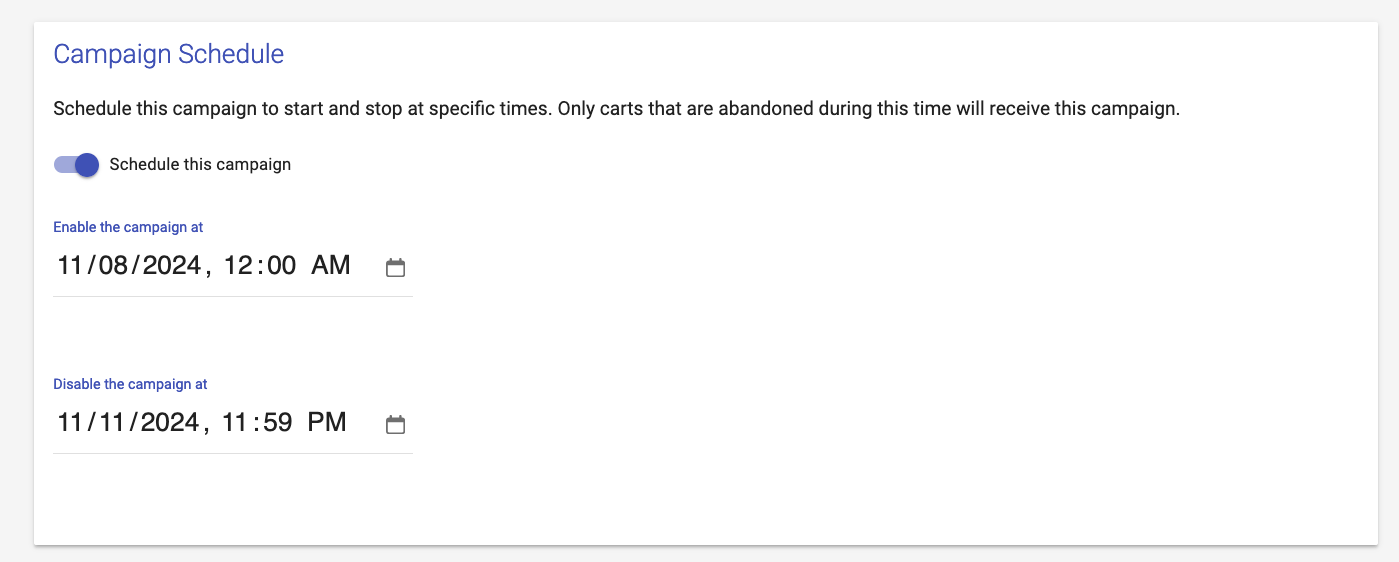
The Scheduled Campaign Section for creating a new Campaign in Abandoned Carts
-
- Setup the rest of the campaign as you normally would and save it (add segments, edit the content, preview the email as needed). If you need more details on how to create and edit a campaign in Recapture, consult that article.
- Now return to your Campaign List screen for Abandoned Carts. You should see something like this:
-
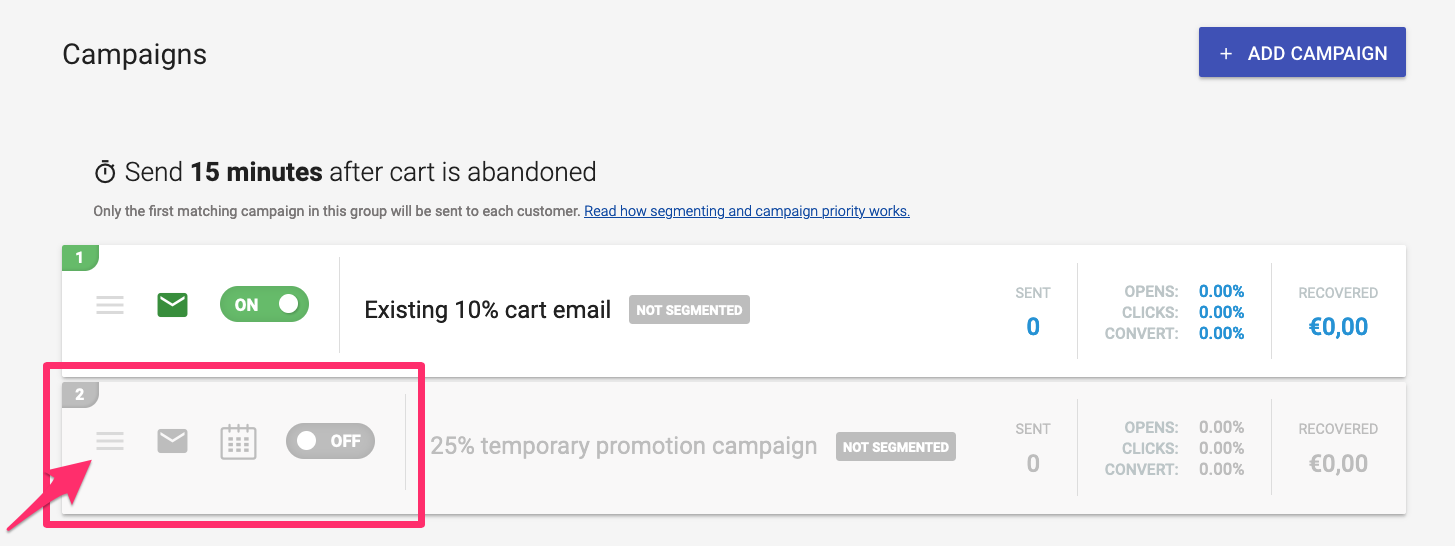
Abandoned Cart campaigns, with a new scheduled (disabled) campaign available. Notice the calendar icon (for the schedule!)
-
- After you have the scheduled campaign, change the campaign priority on the Campaign List screen by dragging your scheduled campaign ABOVE the existing campaign (see the picture above—the arrow is pointing to the drag handle), like so:
- Use the drag handle on the left and pull the campaign above the existing campaign:
-
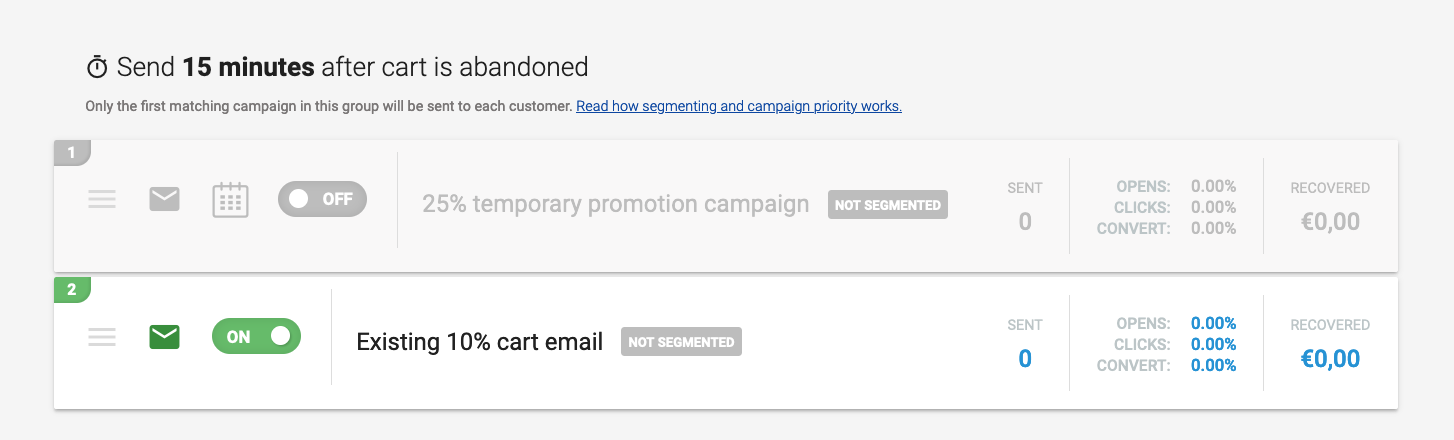
The scheduled campaign after dragging it up one place for the 15 minute time slot
- Do NOT activate the scheduled campaign! It will do so automatically when the time is right. If you activate it, the campaign will lose the schedule and you'll have to reset it—so be careful about that.
- You're all set for your promotion!
- When the promotion ends and the schedule is done, the campaign will automatically deactivate again and you'll return to the Existing promotion you had before.
Scheduled Campaign Limitations
Currently, scheduled campaigns are only available for Abandoned Carts. No other email types support this yet.